Change region and language on Cloud Device
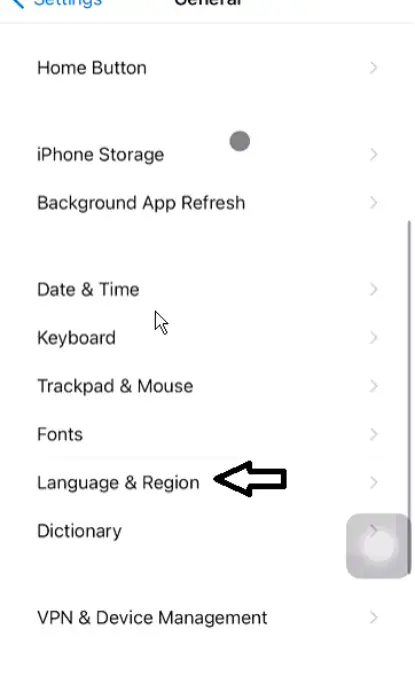
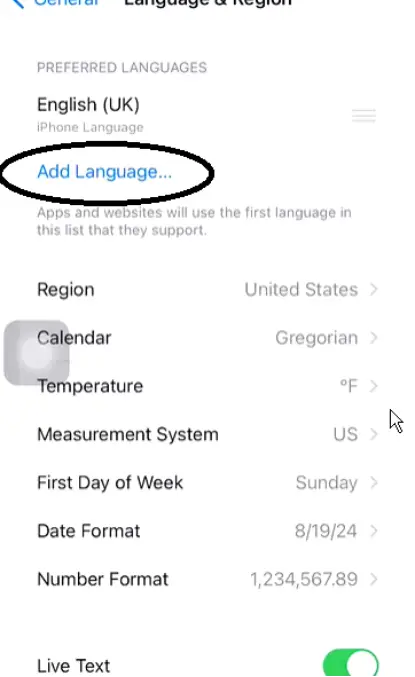
Settings → General → Language & Region. Match Region to the current exit IP. Add a language if you want the UI in Chinese or another locale.
A new Cloud Device is usually United States, with the system in English. Change both in Settings if you need the region to match the exit IP, or a different UI language.
Region
- On the Cloud Device, open Settings.
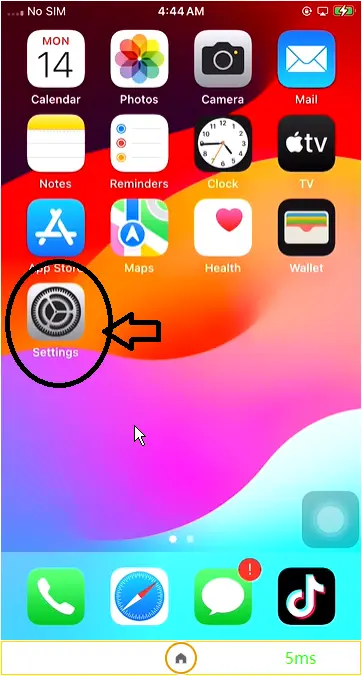
- Open General.
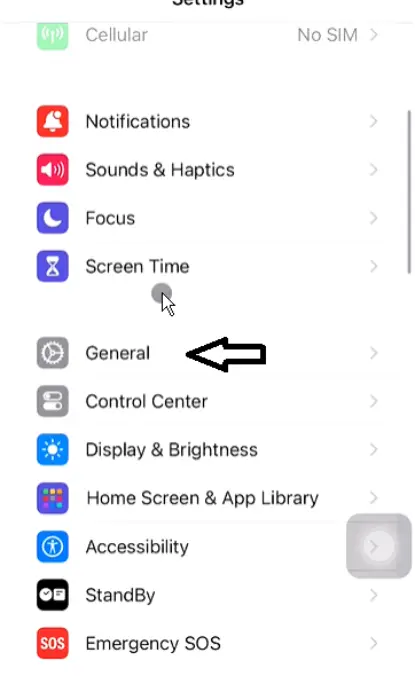
- Open Language & Region.
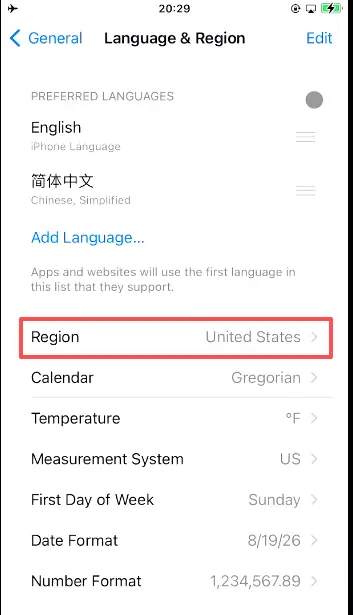
- Tap Region and pick the country. Match it to the current exit IP. Leave United States on the default US line. If you already set SK5, pick the country of that node.
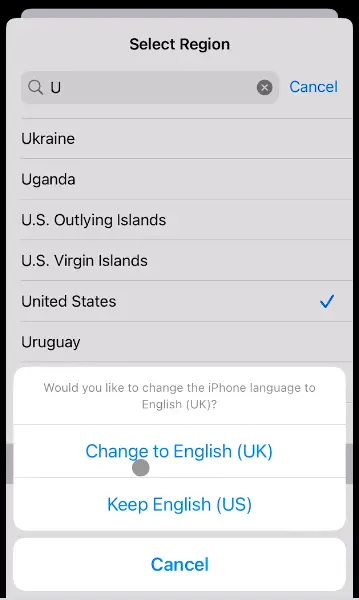
- Wait for the system update. If iOS asks to change the language as well, choose what you need.
Language
Same path: Settings → General → Language & Region.
- Tap Add Language….
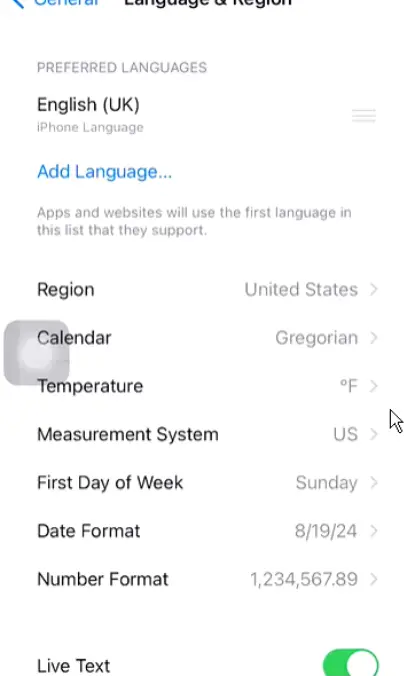
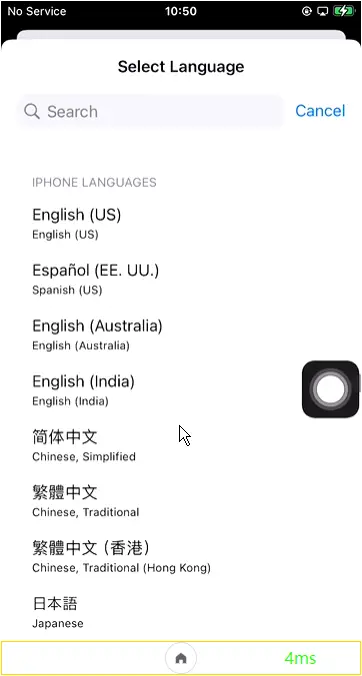
- Scroll to the language. For a Chinese UI, tap 简体中文.
- Confirm, then tap Use Chinese, Simplified.
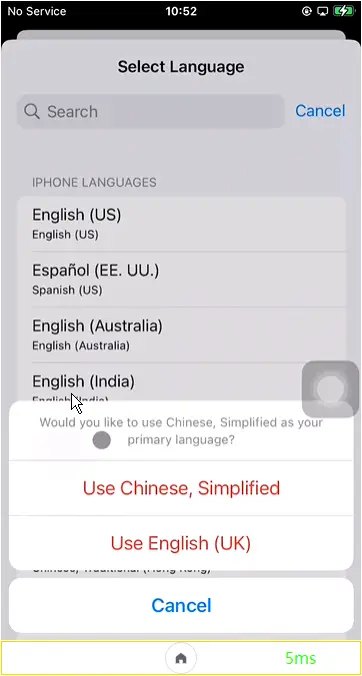
- Wait for the system update.
Notes
- Set device network first, then change region, so region and exit don’t disagree.
- Time zone is separate: Change the time zone.
- This is system locale, not Apple ID. Cloud Device cannot sign in to Apple ID.